As SharePoint Online environments grow, site structure becomes one of the most important factors in maintaining usability, governance, and long-term scalability. Older intranet models often depended on deeply nested subsites, but modern Microsoft 365 architecture favors a flat, flexible design built around purpose-driven sites and associations.
In this post, I explain the differences between the Root Site, Home Site, and Hub Site, show how they fit into a modern SharePoint intranet, and outline how administrators can manage them with PowerShell and Microsoft Graph. I also include an updated architecture diagram and a practical overview of how Microsoft 365 Archive supports lifecycle management for inactive sites.
Key Takeaways
– The Root Site is the tenant’s primary SharePoint entry point and cannot be deleted.
– The Home Site serves as the official intranet landing experience for employees.
– Hub Sites connect related sites through shared navigation, search scope, and branding.
– Microsoft 365 Archive helps reduce active storage consumption while preserving compliance and discoverability.
SharePoint Site Architecture Comparison
The table below highlights the practical differences between the three most important SharePoint Online site designations used in a modern intranet architecture.
| Feature / Metric | Root Site | Home Site | Hub Site |
| Primary Purpose | Tenant Anchor / Base Entry | Corporate Intranet Landing Page | Connects and clusters related sites |
| Max Limit | Exactly 1 per tenant | Up to 10 (via Viva Connections) | Thousands per tenant |
| URL Format | tenant.sharepoint.com | Custom (usually the root url) | Any modern site designated as a hub |
| Permissions | Managed individually | Controlled by corporate communications | Maintained individually (allows shared hub navigation) |
| Deletable? | ❌ No (Breaks tenant function) | Yes (Can be unregistered) | Yes (Can be unregistered as a hub) |
1. Root Site
The Root Site is the fundamental landing anchor of your tenant. It is automatically provisioned when your Microsoft 365 tenant is created. It features the shortest URL structure without the /sites/ or /teams/ suffix. It must never be deleted.
2. Home Site
The Home Site is a designated modern Communication Site acting as the “front door” for your entire workforce. It handles organizational news distributions, houses structural quick links, and integrates closely with Viva Connections.
3. Hub Site
Hub Sites establish structural alignment for flat designs. By registering a site as a Hub Site, other associated Communication or Team sites pull from a single, shared top-tier navigation system and apply the same corporate color theme.
Managing Site Architecture with Microsoft Graph and PowerShell
To automate structural discovery across your flat directory architecture, use the Microsoft Graph PowerShell SDK to fetch the anchor details natively.
PowerShell
# 1. Install and import the Microsoft Graph Module
Install-Module Microsoft.Graph -Scope CurrentUser -Force
Import-Module Microsoft.Graph
# 2. Authenticate with necessary admin permissions
Connect-MgGraph -Scopes “Sites.ReadWrite.All”, “Directory.ReadWrite.All”
# 3. Retrieve Root Site metadata using Graph API URI blocks
$RootSite = Invoke-MgGraphRequest -Method GET -Uri “https://graph.microsoft.com/v1.0/sites/root”
$RootSite | ConvertTo-Json
Managing Site Designations via PowerShell
If you are using the traditional SharePoint Online Management Shell (Microsoft.Online.SharePoint.PowerShell), use these structural configuration patterns:
Promote an Existing Communication Site to a Home Site:
PowerShell
# Ensure you are connected to your Admin Service instance
Connect-SPOService -Url “https://yourtenant-admin.sharepoint.com”
# Set an explicit Communication Site as the main Intranet landing page
Set-SPOHomeSite -HomeSiteUrl “https://yourtenant.sharepoint.com/sites/IntranetPortal”
Register and Associate a New Hub Site:
PowerShell
# Register an existing department site as a Hub
Register-SPOHubSite -Site “https://yourtenant.sharepoint.com/sites/HR-Hub”
# Associate a separate site to that specific Hub infrastructure
Add-SPOHubSiteAssociation -Site “https://yourtenant.sharepoint.com/sites/HR-Benefits” -HubSiteId “https://yourtenant.sharepoint.com/sites/HR-Hub”
Archiving Inactive SharePoint Sites with Microsoft 365 Archive
When sites become inactive, leaving them untouched consumes premium SharePoint Online active storage limits. To address this, Microsoft 365 Archive allows administrators to shift entire sites to a cold-storage tier.
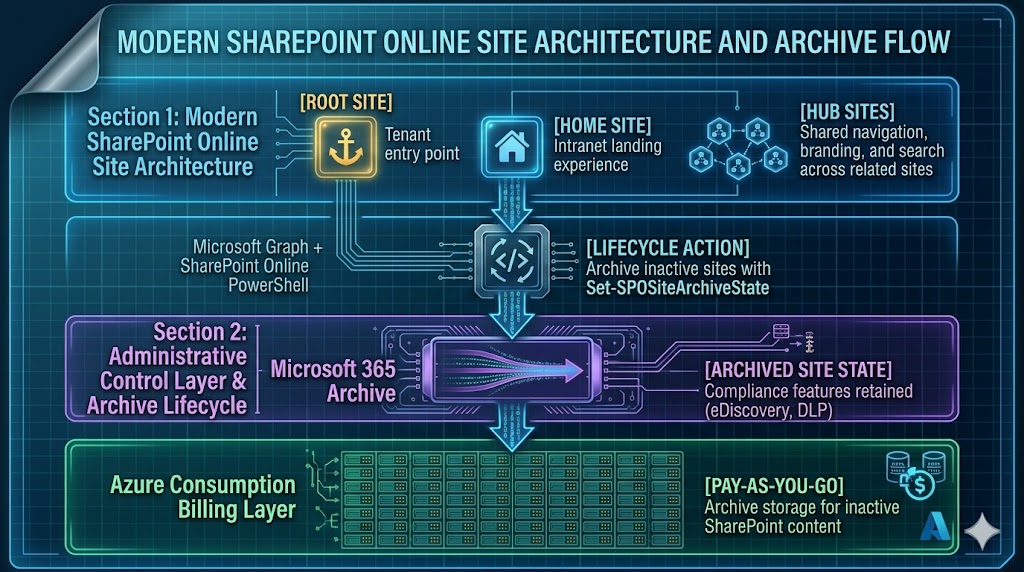
This architecture shows how the Root Site, Home Site, and Hub Sites operate within a modern flat SharePoint structure. Administrative services such as Microsoft Graph and SharePoint Online PowerShell are used to manage configuration and lifecycle operations, while Microsoft 365 Archive provides a controlled way to move inactive sites out of active storage without losing compliance coverage.
Because this data remains natively encrypted within the compliance boundary, your security features (like Microsoft Purview eDiscovery) still index the contents seamlessly, while active SharePoint quota usage drops to zero.
Here is the exact step-by-step procedure to set up the structural architecture and run the lifecycle actions:
Step 1: Establish the Azure Pay-As-You-Go Billing Link
Microsoft 365 Archive is powered via an Azure consumption model ($0.05/GB/month for data exceeding tenant quotas).
- Go to the Microsoft 365 Admin Center.
- Navigate to Setup > Use content AI with Microsoft Syntex.
- Choose Set up pay-as-you-go billing and link your targeted Azure Subscription and Resource Group.
Step 2: Enable the Archiving Service
- Inside the Microsoft 365 Admin Center, navigate to Settings > Org settings.
- Go to the Pay-as-you-go services tab and select Archive.
- Toggle the status check to Turn on Microsoft 365 Archive for SharePoint sites and click Confirm.
Step 3: Run the Archival State Shift via PowerShell
Before running the command on a site collection, note that if the target site functions as a Hub Site, you must unregister it first using Unregister-SPOHubSite.
PowerShell
# 1. Connect to your active service node
Connect-SPOService -Url “https://yourtenant-admin.sharepoint.com”
# 2. View all sites that are currently in an Archived state
Get-SPOSite -Filter {ArchiveStatus -ne “NotArchived”} | Select URL, ArchiveStatus
# 3. Shift the obsolete project site directly to the Azure cold tier
Set-SPOSiteArchiveState -Identity “https://yourtenant.sharepoint.com/sites/Old2022Project” -ArchiveState Archived
Step 4: Monitoring and Reactivation
Once executed, the site transfers out of the active inventory panel into the Archived sites index. It remains hidden from end-users, throwing an explicit access block error if hit directly.
If an operational change occurs and a business unit requires data restoration, you can reactivate it instantly via PowerShell:
PowerShell
# Re-activate the site to production status
Set-SPOSiteArchiveState -Identity “https://yourtenant.sharepoint.com/sites/Old2022Project” -ArchiveState Reactivate
With the right combination of site planning, governance, and lifecycle management, organizations can keep SharePoint Online structured, scalable, and cost-efficient.
Tips
Before you implement or redesign your SharePoint intranet, keep these practical recommendations in mind to avoid common architecture and governance issues.
- Keep your architecture flat: Avoid rebuilding classic subsite-heavy structures when hub associations can provide more flexibility and cleaner governance.
- Treat the root site carefully: Do not delete it, and review permissions, branding, and user impact before replacing or modernizing it.
- Use the home site for official communication: Reserve it for high-value organizational news, navigation, and employee entry experiences rather than department-specific content.
- Plan hub ownership early: Define who manages hub navigation, branding, and site associations so the intranet stays consistent over time.
- Archive with purpose: Archive inactive sites only after confirming retention, compliance, and business recovery requirements.
- Test PowerShell changes in advance: Validate commands and prerequisites in a controlled admin workflow before applying them to production sites.
- Document governance decisions: Record why a site is a root, home, or hub site so future administrators can manage the environment with confidence.