When an Intune policy does not apply as expected, where should we look first? Event Viewer and IME logs are important, but the registry often provides the clearest answers.
This guide walks through six of the most important registry locations that Intune uses to store configuration profiles, compliance policies, and security settings on Windows devices.
Why this matters: Knowing these registry paths can turn a two-hour troubleshooting session into a ten-minute fix.
Before Begin: Prerequisites
- A Windows 10 or Windows 11 device enrolled in Intune (MDM)
- Local administrator access to view certain registry keys
- Regedit.exe (built in), ideally run as an administrator
Warning: Editing the wrong registry keys can break Intune enrollment or policy application. Always export a key before modifying it (Backup Registry).
The 6 Essential Intune Registry Locations
| Serial No. | Registry Key Path | Purpose |
| 1 | HKLM\SOFTWARE\Microsoft\Device Management\Enrollment | MDM enrollment details |
| 2 | HKLM\SOFTWARE\Microsoft\PolicyManager | Most Intune policies |
| 3 | HKLM\SOFTWARE\Microsoft\DMClient\State | OMA-DM sync and CSP results |
| 4 | HKLM\SOFTWARE\Microsoft\IntuneManagementExtension | Scripts and Win32 app status |
| 5 | HKLM\SOFTWARE\Policies\Microsoft\Windows\ADMX | ADMX-backed policy conflicts |
| 6 | HKLM\SOFTWARE\Microsoft\Enrollments\*\Compliance | Compliance state and device health |
Let us explore each location in more detail.
1. Device Management Enrollment
| Path | HKEY_LOCAL_MACHINE\SOFTWARE\Microsoft\Device Management\Enrollment |
| Purpose | Stores the core MDM enrollment information that allows the device to communicate with Intune. |
| What you will find | EnrollmentType: MDM, MAM, or both TenantID: Your Entra ID tenant GUID EnrollmentID: Unique enrollment identifier Certificates: Client certificates used for authentication |
| Troubleshooting use case | If a device shows as not enrolled in Intune but the user claims it was, check whether TenantID exists here. If it is missing, re-enrollment is likely needed. |
2. PolicyManager: The Most Important Key
| Path | HKEY_LOCAL_MACHINE\SOFTWARE\Microsoft\PolicyManager |
| Why it is critical | This is where Intune stores processed policy values. If a policy is not working, check here first. |
| Common subkeys | current: Actively applied policy values default: Baseline or fallback values providers: CSP mappings |
| What you can find | Actual policy values, such as BitLocker settings and OneDrive redirection OMA-URI settings ADMX-backed policies, such as Office, Edge, and Windows settings Policy application status codes |
| Probe example | HKLM\SOFTWARE\Microsoft\PolicyManager\current\Device\ApplicationManagement |
| Verification | If the expected registry value matches your Intune setting, the policy applied successfully. If the value is missing, the policy may not have reached the device or it may have been overridden. |
3. MDM Policy Results (DMClient State)
| Path | HKEY_LOCAL_MACHINE\SOFTWARE\Microsoft\DMClient\State |
| Purpose | Useful for checking OMA-DM sync status and CSP-related policy processing. |
| What you will find | SyncStatus: Last sync result (0 = success, non-zero = error) LastSyncTime: When the device last checked in CSP Configuration: Individual CSP results ErrorInformation: Detailed error codes from failed policies |
| Real-world use | When a policy fails with a generic not applicable error, the specific CSP error is often logged here. |
| Common error codes | 0x80070032: Policy not supported on this OS version 0x87d1fde8: CSP failed to apply; check syntax |
4. Intune Management Extension (IME)
| Path | HKEY_LOCAL_MACHINE\SOFTWARE\Microsoft\IntuneManagementExtension |
| Purpose | Contains IME-related configurations for PowerShell scripts, Win32 apps, and remediation scripts. |
| What you can find | ScriptExecutionStatus: Last run result for PowerShell scripts AppInstallationState: Win32 app deployment status (success, pending, or failed) RemediationSettings: Detection and remediation script configuration IMEConfiguration: Extension heartbeat and retry settings |
| Paired with logs | C:\ProgramData\Microsoft\IntuneManagementExtension\Logs |
| Troubleshooting flow | Check AppInstallationState in the registry and note the error code. Review the IME logs and search for the same code. Fix the underlying issue, such as a missing dependency or incorrect detection rule. |
5. Group Policy vs. MDM Conflict Checking
| Path | HKEY_LOCAL_MACHINE\SOFTWARE\Policies\Microsoft\Windows\ADMX |
| Purpose | Helps identify ADMX-backed policies deployed from Intune and detect conflicts with on-premises Group Policy. |
| What you will find | InstalledADMXPolicies: List of ADMX policies applied through Intune PolicySourcePriority: Which source won (MDM or GPO) ConflictIdentification: Policies set by both sources RemediatorSettings: Auto-remediation settings for conflicts |
| Important rule | When both GPO and Intune set the same policy, the higher-priority source wins. For supported settings, MDM often takes precedence, but you should confirm by checking PolicySourcePriority. |
| Troubleshooting example | If an Edge homepage policy is not applying and both GPO and Intune are setting it, check PolicySourcePriority. If it shows GPO, then Group Policy is winning and must be adjusted or removed. |
6. Compliance and Device State
| Path | HKEY_LOCAL_MACHINE\SOFTWARE\Microsoft\Enrollments\{EnrollmentID}\Compliance |
| Purpose | Useful when troubleshooting compliance or configuration reporting. |
| What you will find | ComplianceState: 0 = compliant, 1 = non-compliant, 2 = error DeviceHealth: BitLocker, antivirus, and firewall status ReportingConfiguration: How compliance data is reported back CSPConfiguration: Compliance CSP results |
| Quick check | If a device shows as non-compliant in Intune but appears healthy, review ComplianceState and the specific failed setting stored nearby in the registry. |
Pro Troubleshooting Workflow
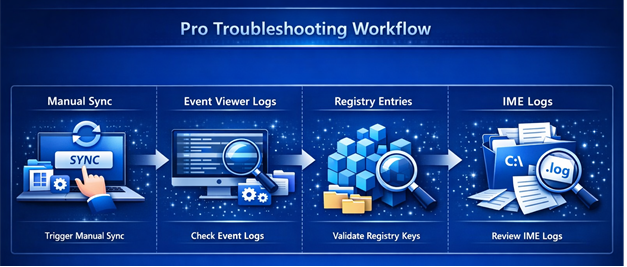
- Trigger a manual sync.
Settings > Accounts > Access Work or School > Info > Sync - Check Event Viewer logs.
Event Viewer > Applications and Services > Microsoft > Windows > DeviceManagement-Enterprise-Diagnostics-Provider > Admin - Validate registry entries.
Start with PolicyManager, then DMClient, then IME. - Review IME logs.
C:\ProgramData\Microsoft\IntuneManagementExtension\Logs
Handy Registry Shortcuts for Intune Troubleshooting
| Shortcut | Purpose |
| regedit /e “C:\intune_policy_backup.reg” “HKEY_LOCAL_MACHINE\SOFTWARE\Microsoft\PolicyManager” | Backup all Intune policies |
| reg add “HKLM\SOFTWARE\Microsoft\PolicyManager\current\Device\Update” /v AllowAutoUpdate /t REG_DWORD /d 1 /f | Example command for a Windows Update policy setting |
Common Scenarios and Registry Checks
| Problem | Registry key to check | What to look for |
| Device shows enrolled but Intune disagrees | Enrollment\TenantID | Missing or incorrect GUID |
| Configuration profile is not applying | PolicyManager\current | Expected value is missing |
| Win32 app is stuck on Installing | IntuneManagementExtension\AppInstallationState | Error code |
| Compliance shows a false positive | Enrollments\*\Compliance\ComplianceState | Non-zero value |
| GPO is overriding Intune | ADMX\PolicySourcePriority | Shows the winning source |
| Last sync failed | DMClient\State\SyncStatus | Non-zero error code |
Quick Reference Card
| Key | Path | Primary Use |
| Enrollment | HKLM\SOFTWARE\Microsoft\Device Management\Enrollment | Verify enrollment details |
| PolicyManager | HKLM\SOFTWARE\Microsoft\PolicyManager | Check applied policy values |
| DMClient | HKLM\SOFTWARE\Microsoft\DMClient\State | Sync status and CSP errors |
| IME | HKLM\SOFTWARE\Microsoft\IntuneManagementExtension | Scripts and Win32 apps |
| ADMX Conflict | HKLM\SOFTWARE\Policies\Microsoft\Windows\ADMX | GPO vs. MDM conflicts |
| Compliance | HKLM\SOFTWARE\Microsoft\Enrollments\*\Compliance | Compliance state |
Summary
Understanding these registry paths gives deeper visibility into how Intune communicates with Windows devices. Instead of relying only on the Intune admin center, we can inspect the device directly and confirm exactly what Intune has, or has not, applied.